Remove someone from your account, and they lose its projects at once.
Before you start
You need an account member who is not an owner. See Invite someone to the account.
Remove an account member
-
Open Account settings > Members.
-
Open the ⋯ menu on the person's row.
-
Click Remove user. It is greyed out on an owner's row.
-
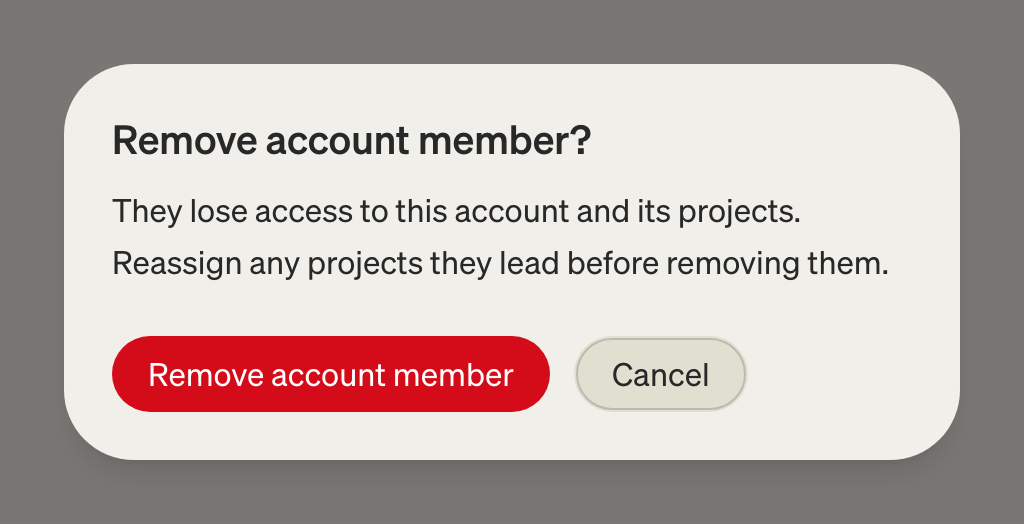
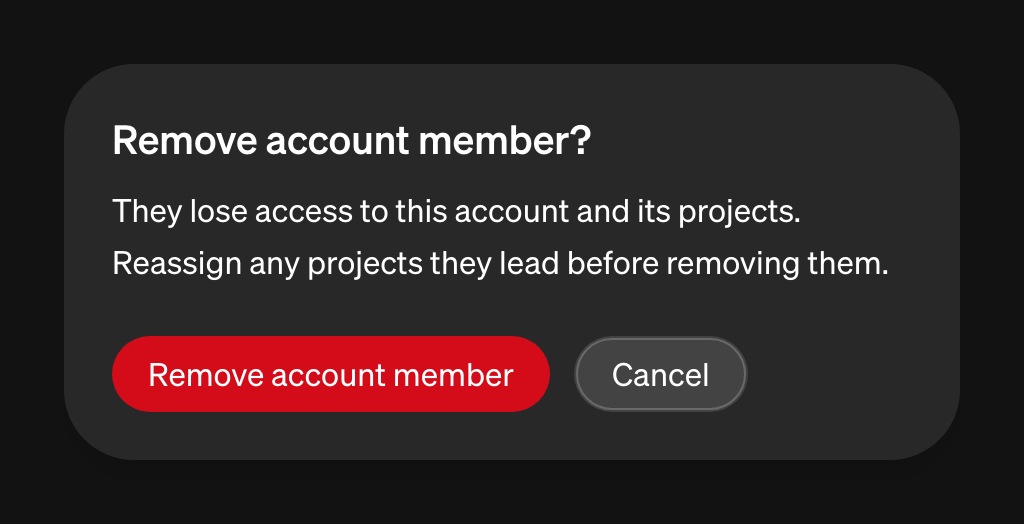
Click Remove account member. You should now see "Account member removed". They lose access to the account's projects too, and the projects they own pass to the account's longest-standing other owner.
If you see "Reassign project leads", the person leads a project. Click Open projects, give each of their projects another lead, then remove them again.